Sync viewport and mouse
You can synchronize the VR headset and Blender's desktop view, using the Sync headset with desktop viewport setting.
This allows you to use the keyboard/mouse to navigate in VR, and vice-versa, to use the VR controllers to change the view in the desktop window.
This also allows you to see the mouse cursor while inside VR, and to sculpt using an external tablet.
Activate sync viewport
-
Open
Freebird Settings.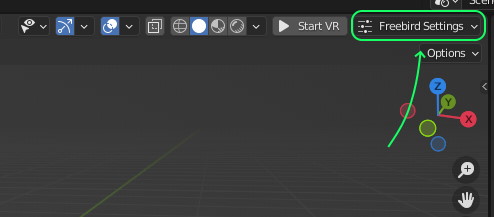
-
Enable
Sync headset with desktop viewportto start synchronizing the view.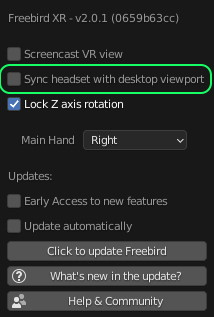
To stop synchronizing the view, disable the Sync headset with desktop viewport setting.
Use a mouse/tablet
Enabling Sync headset with desktop viewport also allows you to see the mouse cursor while inside VR.
The mouse cursor will be shown as a laser pointer, and you can click with the mouse to select and manipulate objects on the desktop, while you're inside VR.
This also allows you to sculpt using an external tablet while inside VR, since you can see where the cursor is pointing.
Strict viewport synchronization
When the viewport is synced, a small offset is normally applied to the position shown in VR, so that the mouse cursor is displayed as a laser pointer (i.e. so that it doesn't appear exactly at the desktop view's position).
If you prefer the VR view to match the desktop viewport exactly, you can enable the Strict viewport synchronization setting in Freebird Settings.
-
Open
Freebird Settings. -
Enable
Strict viewport synchronization.
This removes the small viewport offset that is normally applied to display the mouse laser pointer. The mouse cursor will then be shown as a small reticle (a small circle at the exact synced position), instead of a laser pointer.
To go back to showing the mouse as a laser pointer, disable the Strict viewport synchronization setting.