Move, rotate or resize items
You can grab and move items at any point while using Freebird. For e.g. you can grab objects, vertices/edges/faces, bones, and UI gizmos.
Grab an item
- Move the main hand's cursor over an item, and press and hold the main
squeezebutton (i.e. the button on the side of the controller). - This will grab the item under the cursor. Any existing selections will also be grabbed.
- Move your main hand to move the grabbed items along.
- Release the main
squeezebutton to release the grabbed objects.
Note: The squeeze button is used for grabbing by default. You can change this to the trigger button using the Grab Button setting — see Choose the grab button below.
Tip: You can also grab items while using drawing tools. For e.g. you can draw a line, and then grab and move it.
Tip: Items with the Selectable flag turned off (in Blender's Outliner or Object properties) cannot be grabbed or moved in VR — see Items that cannot be selected.
Move/Rotate/Resize along specific axes
- In the
Selecttool's sub-menu, chooseMOVE,ROTATE,SCALEorALL. MOVE,ROTATEandSCALEshow only that handle type around the selection.ALLshows move, rotate and scale gizmos together, so you can switch between constrained transforms without changing modes.- Then grab the
X,YorZhandles of the selection to move, rotate or resize around that specific axis.
To return back to free grab (i.e. to freely move/rotate/resize around any axis), select the FREE option in the Select tool's sub-menu.
Free grab vs gizmo handles
When FREE or ALL is active, grabbing the selection directly will move, rotate and resize it freely.
When MOVE, ROTATE or SCALE is active, grabbing the selection will transform freely while constrained to that specific transform type (i.e. move freely without rotating, or rotate freely without moving etc).
Grabbing multiple items
Select multiple items using the Select tool, and grab any one of the selected items. All the selected items will be grabbed.
Resizing items
- Grab the desired items using the main
squeezebutton. - Then press and hold the alternate hand's
squeezebutton. - Move your hands towards each other to shrink the grabbed items, or move your hands away from each other to expand the grabbed items.
This is similar to how pinch-to-zoom behaves on touch screens for zooming in and out of photos.
Transform space
In the Select tool's sub-menu, you can choose GLOBAL or LOCAL to control the transform space of the X, Y and Z gizmo handles (i.e. the orientation of the axes you move/rotate/resize along).
- Point at the main menu, and click on the
Selecttool using your main hand'striggerbutton. - In the
Selecttool's sub-menu, chooseMOVE,ROTATE,SCALEorALL(theGLOBAL/LOCALoptions are shown when these are active, and not inFREEmode). - Point at the submenu for
Select, and click on the
GLOBALor
LOCALoption. -
Then follow the steps in
Move/Rotate/Resize along specific axesabove. -
GLOBALaligns the gizmo handles to the world's axes. LOCALaligns the gizmo handles to the selected object's own axes (i.e. its rotation).
This mirrors Blender's Transform Orientation setting, so changing it in VR will also change it in Blender, and vice-versa.
Choose the grab button
You can choose which controller button is used for grabbing and moving items, using the Grab Button setting in Freebird Settings (under Beta Tools at the bottom).
-
Open
Freebird Settings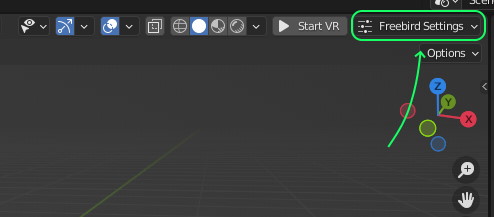
-
Under
Beta Tools, setGrab ButtontoSqueezeorTrigger. -
Squeeze(default): press and hold thesqueezebutton (the button on the side of the controller) to grab items. Trigger: press and hold the maintriggerbutton to grab items.
The chosen button is used for all grabbing — objects, vertices/edges/faces, bones, and UI gizmos — so changing it affects the steps in this page, and in Pose armature bones, Clone items etc.